
Automatic Backups
Automatic backups ensure that your server data remains safe and can be restored quickly in case of issues such as crashes, data corruption, or accidental changes. This guide explains how to create scheduled backups using the Game Panel, including recommended settings and example Cron expressions.
Backup Scheduling
Section titled “Backup Scheduling”1. Accessing the Schedule Settings
Section titled “1. Accessing the Schedule Settings”Navigate to the Schedules tab in the Game Panel. This section allows you to create automated tasks that run at specified intervals.
2. Creating a Schedule
Section titled “2. Creating a Schedule”Enter a name for the schedule and specify the execution time using a Cron expression.
For assistance in creating Cron expressions, we recommend the following tool:
https://cron.help/
Some examples:
| Cron Expression | Description |
|---|---|
0 4 * * * | Daily at 4 AM |
0 3,15 * * * | Daily at 3 AM and 3 PM |
0 3 * * 2 | Every Tuesday at 3 AM |
0 */6 * * * | Every 6 hours |
0 0 * * 0 | Every Sunday at midnight |
After setting the desired execution time, enable the schedule using the Schedule Enabled switch.
3. Adding a Backup Task
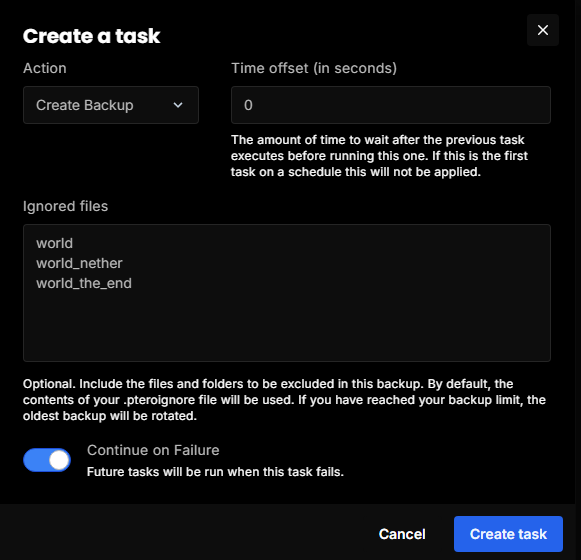
Section titled “3. Adding a Backup Task”Open the menu in the top right corner (three dots) and select Add a new task.
Choose action: Create Backup
We recommend adding the following entries under Ignored Files, especially for Minecraft servers:
worldworld_netherworld_the_endThis significantly reduces backup size and speeds up restore operations.
Backup Retention
Section titled “Backup Retention”If no backup slots remain, the system deletes the oldest backup, except those marked as locked.
Locked backups are never removed automatically.