
Automatic Restarts
Automatic restarts help maintain server performance and stability by clearing memory, preventing lag buildup, and applying necessary system updates. This guide explains how to schedule automated restarts using the Game Panel.
Restart Scheduling
Section titled “Restart Scheduling”1. Accessing the Schedule Settings
Section titled “1. Accessing the Schedule Settings”Navigate to the Schedules tab in the Game Panel. This section allows you to create automated tasks that run at specified intervals.
2. Creating a Schedule
Section titled “2. Creating a Schedule”Enter a name for the schedule and specify the execution time using a Cron expression.
For assistance in creating Cron expressions, we recommend the following tool:
https://cron.help/
Some examples:
| Cron Expression | Description |
|---|---|
0 4 * * * | Daily at 4 AM |
0 3,15 * * * | Daily at 3 AM and 3 PM |
0 3 * * 2 | Every Tuesday at 3 AM |
0 */6 * * * | Every 6 hours |
0 0 * * 0 | Every Sunday at midnight |
After setting the desired execution time, enable the schedule using the Schedule Enabled switch.
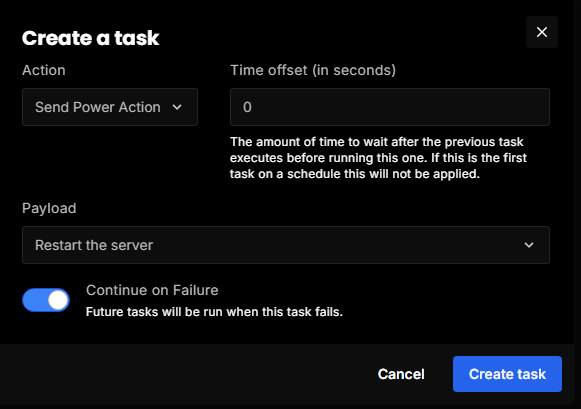
3. Adding a Restart Task
Section titled “3. Adding a Restart Task”Open the menu in the top right corner (three dots) and select Add a new task.
Choose action: Send Power Action
Choose Payload: Restart the server
Alternative Restart Methods
Section titled “Alternative Restart Methods”Instead of using the built-in restart action, you may also select Send Command as Payload.
This allows you to execute a custom command such as /restart.