
SFTP Access with WinSCP
SFTP lets you manage files on your KVM server with a graphical file manager. This is useful for uploading websites, server files, backups, configuration files, or larger folders.
Install
Section titled “Install”Download WinSCP from the official website: https://winscp.net/eng/download.php
Connect
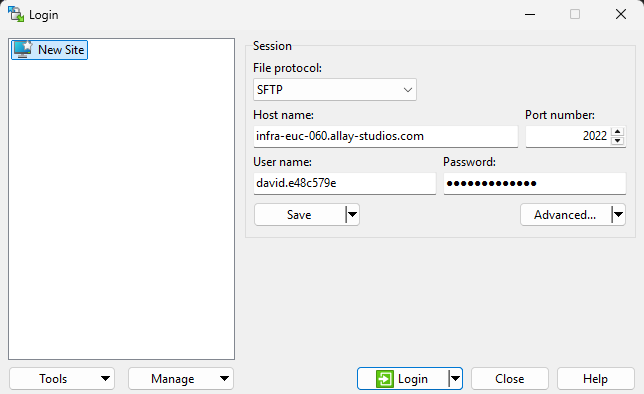
Section titled “Connect”Create a new connection in WinSCP and enter these values:
| Field | Value |
|---|---|
| File protocol | SFTP |
| Host name | Your service ip |
| Port number | Usually 22 unless you changed it |
| User name | Usually root, unless you created another user |
| Password | Your ssh password |
Upload files
Section titled “Upload files”After logging in, WinSCP shows two sides:
- Left side: files on your computer
- Right side: files on your server
Drag files from the left side to the right side to upload them. Drag files back to download them.
For many applications, common target directories are:
| Path | Use |
|---|---|
/root | root user’s home directory |
/home/<user> | normal user’s home directory |
/var/www | website files |
/opt | application files |
/etc | system configuration files |
Use an SSH key
Section titled “Use an SSH key”If you configured SSH key login, WinSCP can use the same key.
- Open Advanced in the login window.
- Go to SSH → Authentication.
- Select your private key file under Private key file.
- Save the session.
- Connect again.
WinSCP supports PuTTY .ppk keys directly. If your key is in OpenSSH format, WinSCP can usually convert it when selecting the file.