
SSH Login with PuTTY
SSH gives you terminal access to your KVM server. Use it for installing software, editing configuration files, checking logs, and managing services.
What you need
Section titled “What you need”Before you start, keep these details ready:
| Detail | Where to find it |
|---|---|
| Server IP | Your service details |
| SSH port | Usually 22 unless you changed it |
| SSH username | Usually root, unless you created another user |
| SSH password | Your service details |
Install PuTTY
Section titled “Install PuTTY”Download PuTTY from the official website: https://www.putty.org/
Install it and open PuTTY.
Connect
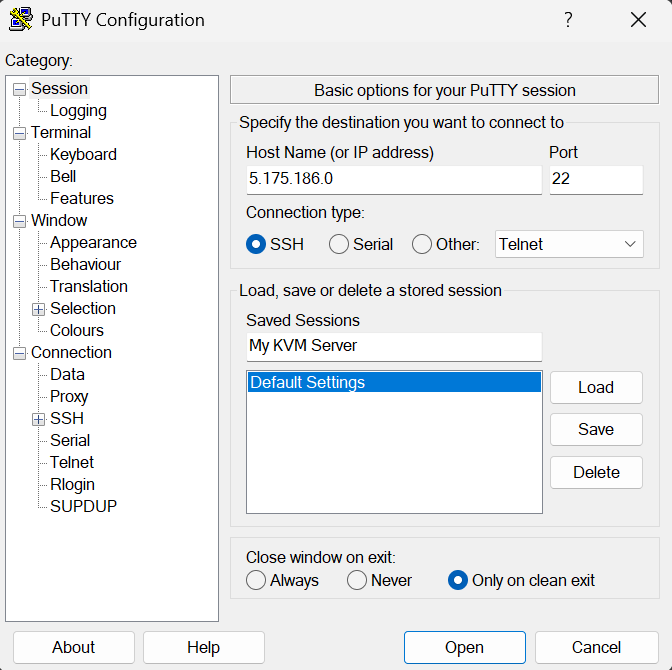
Section titled “Connect”- Enter your server IP in Host Name (or IP address).
- Set Port to
22, unless you changed it. - Set Connection type to SSH.
- Optional: enter a name under Saved Sessions and click Save so you do not need to type the IP every time.
- Click Open.
On the first connection, PuTTY will show a security alert about the server host key. This is normal for a new server. Click Accept if the IP address is correct.
Log in
Section titled “Log in”PuTTY will ask for a username:
login as:Enter your username, for example:
rootThen enter your password. The password will not be shown while typing. Press Enter after typing it.
If the login worked, you will see a shell prompt similar to:
root@your-server:~#Run the first update
Section titled “Run the first update”After logging in for the first time, update your package list:
apt updateapt upgrade -yIf your server is not Debian or Ubuntu, use the package manager for your operating system instead.
Common issues
Section titled “Common issues”Network error: Connection timed out
Section titled “Network error: Connection timed out”Check that:
- the server is online,
- the IP address is correct,
- SSH is running,
- your firewall allows the SSH port.
Access denied
Section titled “Access denied”Check that:
- the username is correct,
- the password is correct,
- Caps Lock is disabled,
- you are using the correct SSH key if key login is enabled.
Server unexpectedly closed network connection
Section titled “Server unexpectedly closed network connection”Wait a few seconds and try again. If it keeps happening, restart the server from your panel or contact support.